
How to Fix IPTV Audio and Video Out of Sync
Watching a stream where the dialogue arrives a beat before or after the lips move is distracting in a way that's hard to ignore. If you're dealing with IPTV audio out of sync with the video, it's a genuinely common issue — and one that's usually caused by how your audio is being processed rather than a broken stream.
This guide explains why audio and video drift apart during IPTV playback, a step-by-step way to fix it, and when the cause sits outside your setup.
What causes IPTV audio and video to fall out of sync
Audio and video technically travel through your setup as two separate data streams that need to be recombined at the exact right moment. When something in that chain adds a delay to one but not the other, the result is a mismatch that ranges from mildly annoying to genuinely unwatchable. Common causes include:
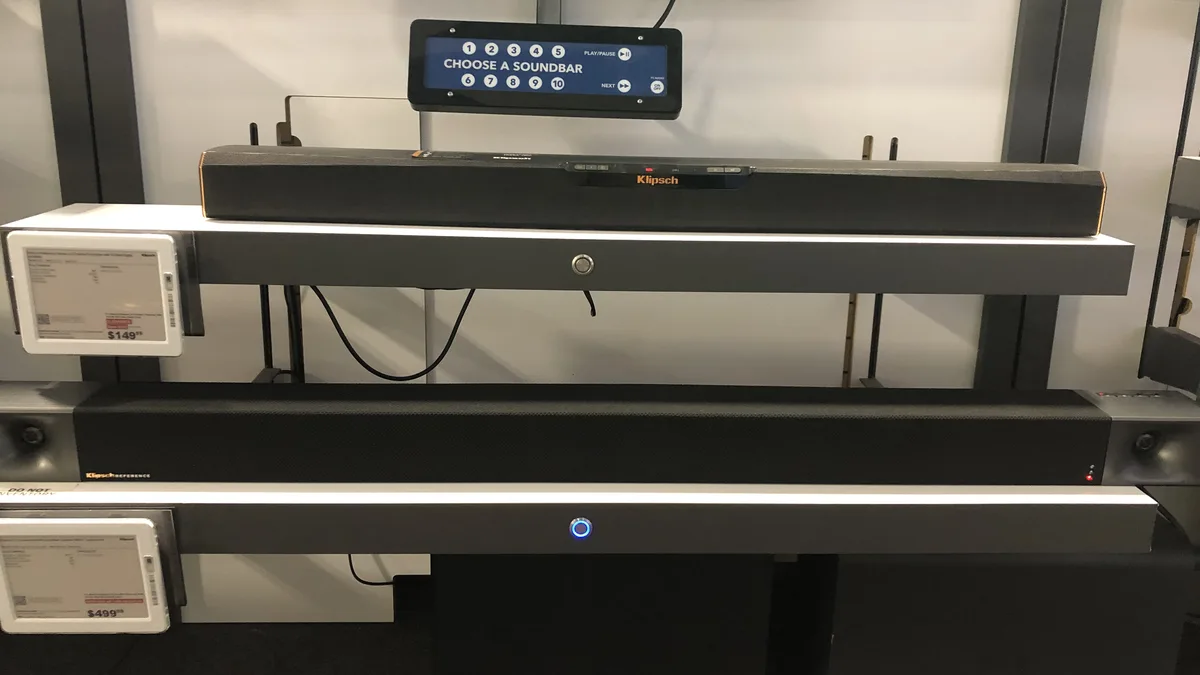
- Extra audio processing delay from a soundbar, AV receiver, or Bluetooth speakers, all of which take a small but real amount of time to process surround sound or wireless audio.
- Mismatched audio and video codecs that take different amounts of time for your device to decode, particularly on older or less powerful hardware.
- Network instability, which can cause video frames to drop or arrive late while audio continues playing at a steady pace, since the two are often buffered slightly differently.
- Player app bugs or outdated software that mishandle timing between the two streams, especially after a device's operating system updates.
- TV audio settings like surround sound processing or audio enhancement modes that add their own delay before sound reaches the speakers.
Sync issues can appear gradually, where the drift gets worse the longer you watch, or immediately from the start of playback — which one you're seeing is a useful clue for where to look first. Gradual drift tends to point toward a device performance issue building up over time, while immediate drift more often points toward your audio equipment or a codec mismatch.
Step-by-step: how to fix IPTV audio and video sync
1. Restart the player app first
If sync issues appeared partway through a viewing session, closing and reopening the app resets the timing between the audio and video streams and resolves a large share of drift issues on its own, without needing to touch any settings.
2. Check for an audio delay or sync setting in your player app
Many IPTV player apps include a manual audio delay adjustment, sometimes buried in playback or advanced settings. If sync is consistently off by roughly the same amount every time you watch, a small manual adjustment here is often the cleanest and most permanent fix.
3. Test with your TV's built-in speakers
If sync is fine using your TV's own speakers but off when routed through a soundbar or receiver, the delay is being introduced by that external audio device rather than the IPTV stream itself — this single test narrows the problem down enormously.
4. Check your soundbar or receiver's audio processing settings
Surround sound decoding, virtual audio enhancement, and Bluetooth audio all typically add processing delay. Many soundbars include a "sync" or "lip-sync" adjustment specifically to compensate for this — check the device's settings menu or manual, since this feature is easy to overlook.
5. Switch from Bluetooth to a wired audio connection
Bluetooth audio has inherent latency that wired connections don't. If you're using Bluetooth speakers or headphones, switching to an HDMI or optical connection often resolves sync issues immediately and completely.
6. Update your player app and streaming device's firmware
Audio-video sync bugs are the kind of issue app developers frequently patch, particularly after a change to how a device handles hardware audio decoding. If you haven't updated your IPTV player app or your streaming device's system software recently, that update may already contain a fix.
7. Restart your streaming device fully
If the drift builds up gradually over a long viewing session, a full device restart clears whatever timing or memory issue was accumulating and gives you a clean baseline to start from.
Audio delay on Firestick
Firestick audio delay often shows up specifically when connected through an AV receiver or soundbar rather than directly to the TV — the extra hop in the audio chain adds latency the video path doesn't share. Try connecting the Firestick's HDMI output directly to the TV as a test, then reintroduce the soundbar if that resolves it, to confirm exactly where the delay is coming from before adjusting any settings.
Smart TV audio sync issues
On Smart TVs, built-in audio enhancement features — sometimes labeled things like "clear voice," "surround," or "auto volume" — can introduce processing delay on their own. Disabling these features one at a time while testing playback is the most reliable way to isolate which setting is responsible, rather than turning everything off at once and losing track of what actually fixed it.
Audio sync on Android TV and streaming boxes
Android TV boxes generally pass audio through with less added delay than built-in Smart TV apps, but sync issues can still appear when a box is connected through an AV receiver that's also handling video pass-through. If sync is off only when the receiver sits between the box and the TV, try connecting the Android TV box directly to the TV as a test, and check whether the receiver has its own audio delay or lip-sync setting to adjust.
When the problem is not your device
If sync issues appear on every channel, every device, and even with external audio equipment removed from the equation, the underlying cause may be network instability affecting how video frames are delivered relative to audio. Xtreme HD IPTV can't control your TV's audio processing settings, your soundbar's firmware, or your home network configuration — but our support team can help you narrow down whether the issue is coming from your audio setup, your device, or your connection.
How Xtreme HD IPTV can help with playback issues
If you've tested with your TV's built-in speakers, adjusted audio delay settings, and updated your apps without success, our support team can help confirm whether the issue is specific to your account, a particular channel, or your device setup. Persistent sync problems are sometimes tied to a specific device — our devices page is worth checking if you're considering a different setup that handles audio decoding more consistently.
If sync problems show up alongside buffering or a black screen rather than on their own, they may share a root cause — see our guides on fixing IPTV buffering and freezing and channels not loading for related troubleshooting.
Keeping audio and video in sync long-term
Once sync is fixed, a few habits keep it from drifting again. If you made a manual audio delay adjustment in your player app, note down the value you settled on — some apps reset this setting after an update, and knowing your previous number saves you from re-diagnosing the same issue from scratch. Keep your soundbar or receiver's firmware updated alongside your streaming device's software, since audio processing bugs on the equipment side are just as common as issues with the player app itself. And if you regularly switch between different audio setups — say, headphones some nights and a soundbar on others — expect to need slightly different sync adjustments for each, since they rarely share identical processing delay.
If sync problems tend to reappear specifically after your TV or streaming device installs an automatic update, that's a useful pattern to recognize: check your sync settings after any update rather than waiting for the drift to become noticeable again.
Conclusion
Audio and video sync problems feel like they should be complicated, but they almost always come down to an extra step somewhere in the audio chain — a soundbar, a Bluetooth connection, or a setting adding delay the video path doesn't share. Testing with your TV's own speakers first will usually tell you within a minute whether the issue is your audio equipment or something else. If it's still unresolved after working through this guide, our support team can help you dig further.