
How to Fix IPTV Buffering and Freezing: A Complete Troubleshooting Guide
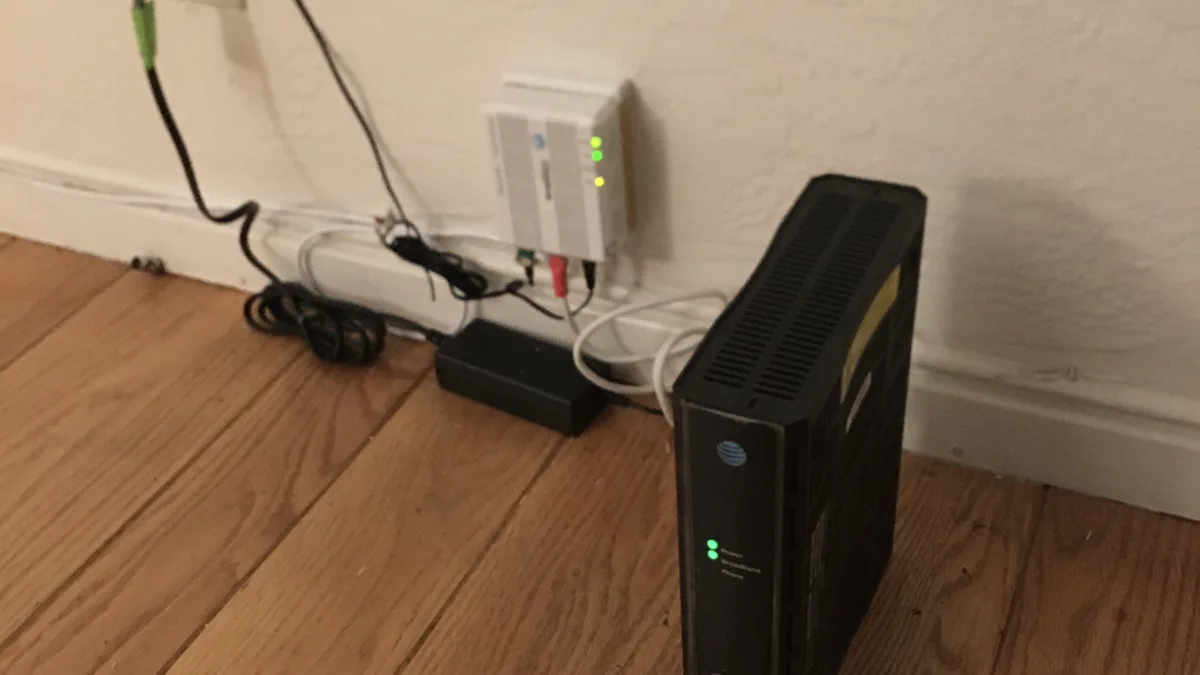
Nothing kills a movie night faster than the screen freezing mid-scene or a live game that keeps pausing to reload. If you're dealing with constant IPTV buffering, the good news is that it's one of the more fixable problems in streaming — it's almost never a mystery once you know where to look.
This guide walks through what actually causes buffering and freezing, a step-by-step way to track down your specific cause, and what to do when the issue genuinely isn't something you can fix from your end.
What actually causes IPTV buffering and freezing
Buffering happens when your device can't download video data as fast as it needs to play it back, so playback pauses to catch up while more data arrives. Freezing is the same underlying issue wearing a different face — instead of a spinning loading icon, the picture simply locks on a single frame while the audio may keep playing, stutter, or cut out entirely. Both are symptoms of the same bottleneck: data isn't arriving at your device fast enough or consistently enough to keep up with playback. A handful of factors typically contribute:
- Internet speed below what the stream needs, especially for Full HD or 4K channels, which require considerably more sustained bandwidth than standard HD.
- Weak Wi-Fi signal — walls, distance from the router, and interference from other electronics like microwaves and cordless phones all reduce your real-world speed, sometimes by more than half of what your plan advertises.
- Too many devices sharing the connection at the same time, including ones unrelated to streaming, like a laptop backing up to the cloud or a phone downloading an app update in the background.
- An underpowered streaming device that struggles to decode video quickly enough, particularly older Firesticks and budget Smart TVs that were never designed for today's higher bitrate streams.
- Temporary network congestion, either inside your home, from your internet provider during peak evening hours, or somewhere along the route the stream takes to reach you.
It helps to think of your connection as a pipe and the video stream as water flowing through it. When the pipe is narrower than the flow the stream needs — because of a slow plan, a weak signal, or several other devices drawing from the same pipe — the video has nowhere to go but to pause and wait. Most of the fixes below are really just different ways of widening that pipe or reducing what's competing for it.
Step-by-step: how to fix IPTV buffering
Work through these in order — most buffering problems get resolved somewhere in the first four steps.
1. Run a speed test on the actual streaming device
Testing speed on your phone while streaming on a Firestick tells you very little, since the two devices can get meaningfully different real-world speeds even on the same network. If your device has a browser, run the test directly on it, or at minimum test on the same Wi-Fi band and in the same room. As a rough guide, aim for at least 15 Mbps sustained for HD and 25 Mbps or more for Full HD — and remember that "sustained" matters more than the peak number your ISP advertises.
2. Switch from Wi-Fi to a wired connection where possible
This is the single biggest fix for persistent buffering. An Ethernet cable, or a USB-to-Ethernet adapter on devices that support one, removes Wi-Fi interference from the equation entirely and gives you a far more consistent data rate. If running a cable to your TV isn't practical, a powerline adapter that uses your home's existing electrical wiring is a reasonable middle ground between Wi-Fi and a direct cable run.
3. Close background apps and disconnect idle devices
Downloads, cloud backups, video calls, and other streams elsewhere in the house all compete for the same bandwidth. Pausing them, even temporarily, often clears up intermittent buffering right away — this is especially worth checking if buffering seems to happen more in the evening, when household internet usage tends to peak.
4. Lower the stream's resolution manually
Most IPTV player apps let you pick a resolution instead of relying on auto-quality. If your connection can't reliably sustain 4K or Full HD, dropping to HD is usually far more watchable than a picture that keeps stalling every few minutes. Think of this as a temporary diagnostic step too — if lowering resolution eliminates buffering entirely, you've confirmed the bottleneck is bandwidth rather than something else.
5. Restart your router, modem, and streaming device — in that order
Power everything off, wait about 30 seconds, then start with the modem, then the router, then your streaming device once the router has fully reconnected. This clears temporary memory issues on all three and re-establishes a clean connection rather than one that's been running continuously for weeks.
6. Update your IPTV player app
Outdated player apps sometimes have inefficient buffering behavior that newer versions fix, particularly around how aggressively they pre-load video data. Check your app store or sideload source for an update before assuming the problem is your network — this takes two minutes and rules out an entire category of cause.
7. Turn off any VPN or change your DNS
A VPN routes your traffic through an extra server, which can add latency and reduce throughput — worth disabling temporarily to see if it's a factor, especially if the VPN server you're connected to is geographically distant. Switching to a public DNS like 1.1.1.1 or 8.8.8.8 can also shave off small delays in some home networks, though the effect here is usually smaller than the fixes above.
IPTV buffering on Firestick
Firestick is affordable, but its base storage and processing power are limited compared to a dedicated Android TV box. If you're seeing frequent buffering specifically on a Firestick, check how many other apps are installed and running in the background, and consider a factory reset if the device has accumulated years of cache and clutter. Older first- and second-generation Firestick models in particular can struggle to keep up with Full HD content even on a fast connection, simply because the hardware itself is the bottleneck rather than your network. Our Firestick installation guide also covers the app-side settings worth checking during setup.
IPTV freezing on Smart TV
Built-in Smart TV apps run on hardware that wasn't necessarily designed with heavy streaming workloads in mind, which is part of why IPTV freezing on Smart TV tends to show up more on older models. If freezing is specific to your TV rather than other devices in the house, try closing other open apps on the TV, and check whether a wired connection is possible — our Smart TV installation guide walks through platform-specific steps for Samsung and LG.
IPTV buffering on Android TV
Android TV boxes generally handle buffering better than budget streaming sticks thanks to more capable processors, but they're not immune. If freezing shows up on an Android TV device, check for other apps running in the background — Android TV's multitasking makes it easy to leave several apps open without realizing it — and confirm the device isn't also being used for downloads or app updates while you stream. Our Android TV installation guide covers setup and app-management basics if you're starting fresh.
When the problem is not your device
If you've worked through the steps above on more than one device and the same channel still stutters, the cause may sit outside your home network entirely — anywhere from local network congestion during peak hours to a temporary issue with a specific channel's source. It's also worth being honest about what's realistic to control: no IPTV provider, including Xtreme HD IPTV, can change your home Wi-Fi signal, your router's placement, or your internet service provider's performance. What a provider can do is help you rule out account or app-side issues and point you toward the network fixes above.
If buffering happens on one channel only, try a different one to confirm — an isolated issue with a single stream is a different problem than broad connection trouble, and it's worth reporting separately rather than assuming your whole setup is at fault. Similarly, if buffering only happens at a specific time of day, that pattern usually points to household or neighborhood network congestion rather than anything about your account or device.
How Xtreme HD IPTV helps with buffering and playback issues
Xtreme HD IPTV is built around delivering a stable streaming experience, and our support team regularly helps customers work through exactly this kind of playback troubleshooting — confirming account status, checking for app-side issues, and helping you figure out whether a problem is coming from your connection, your device, or something on our end. We won't tell you buffering is impossible, because that wouldn't be honest — network conditions vary too much for any provider to promise that. What we can do is help you methodically rule things out until you land on the actual cause. If you've been through this guide and buffering is still getting in the way, our support team can take a closer look at your specific setup.
Choosing a plan with a stable connection in mind matters too. See what's included across our subscription plans, and check our supported devices page if you're considering switching to a device better suited to smooth playback.
Conclusion
Buffering and freezing feel random in the moment, but they almost always trace back to a specific, identifiable cause — usually bandwidth, Wi-Fi stability, or a device that's due for a restart. Working through the steps in order, rather than jumping straight to the most drastic fix, is the fastest way to actually solve it rather than just guessing. If you've tried everything here and you're still stuck, don't hesitate to reach out to Xtreme HD IPTV support — a second set of eyes on your specific setup often catches something a general guide can't.