
Installation Guide
How to Install Xtremes IPTV on Android TV
Android TV's open app ecosystem makes it one of the easiest platforms to run Xtremes IPTV on, since most IPTV players are available directly through the Google Play Store. Here's how to get set up.
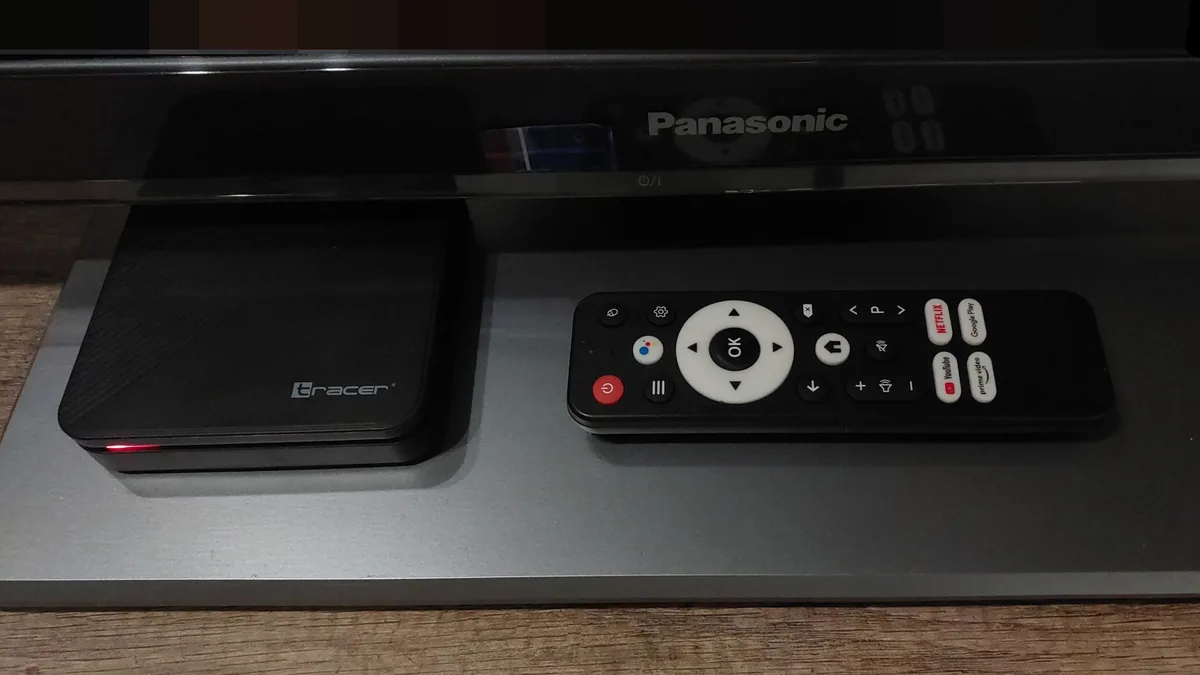
What you’ll need
- An Android TV box, Chromecast with Google TV, or Android TV-based smart TV
- A Google account signed in on the device
- An active Xtremes IPTV subscription with your credentials or M3U URL
- A wired or stable Wi-Fi connection
Step-by-step instructions
- 1
Open the Google Play Store
From the Android TV home screen, launch the Play Store app using your remote.
- 2
Search for a compatible IPTV player
Search for a supported IPTV player app and select Install. Most players are free to download.
- 3
Open the app and add your playlist
Launch the installed player and choose the option to add a new playlist using either Xtream Codes login (username, password, server URL) or a direct M3U link.
- 4
Sync channels and EPG
Allow the app a moment to download the full channel list and program guide data before browsing.
- 5
Organize favorites for easier navigation
Most players let you star or favorite frequently watched channels so they appear at the top of the list.
Troubleshooting
Can't find an IPTV player in the Play Store
Some regions restrict certain apps. Try searching by the exact app name, or sideload the APK using a file manager if it's unavailable in your region's store.
Playlist won't load after entering details
Confirm the server URL doesn't have a trailing slash and that the username/password match exactly what was sent in your welcome email.
Picture is pixelated or freezes intermittently
Lower the stream quality setting inside the player app, or test your connection speed and switch to a wired connection if possible.
EPG (program guide) shows no data
Give the app a few minutes after first setup to fully download guide data, then restart the app.
Still need help? Check our FAQ page or contact support.