
Installation Guide
How to Install Xtremes IPTV on Windows
Windows users can stream Xtremes IPTV through a dedicated desktop IPTV player, giving you full-screen playback on any monitor connected to your PC.
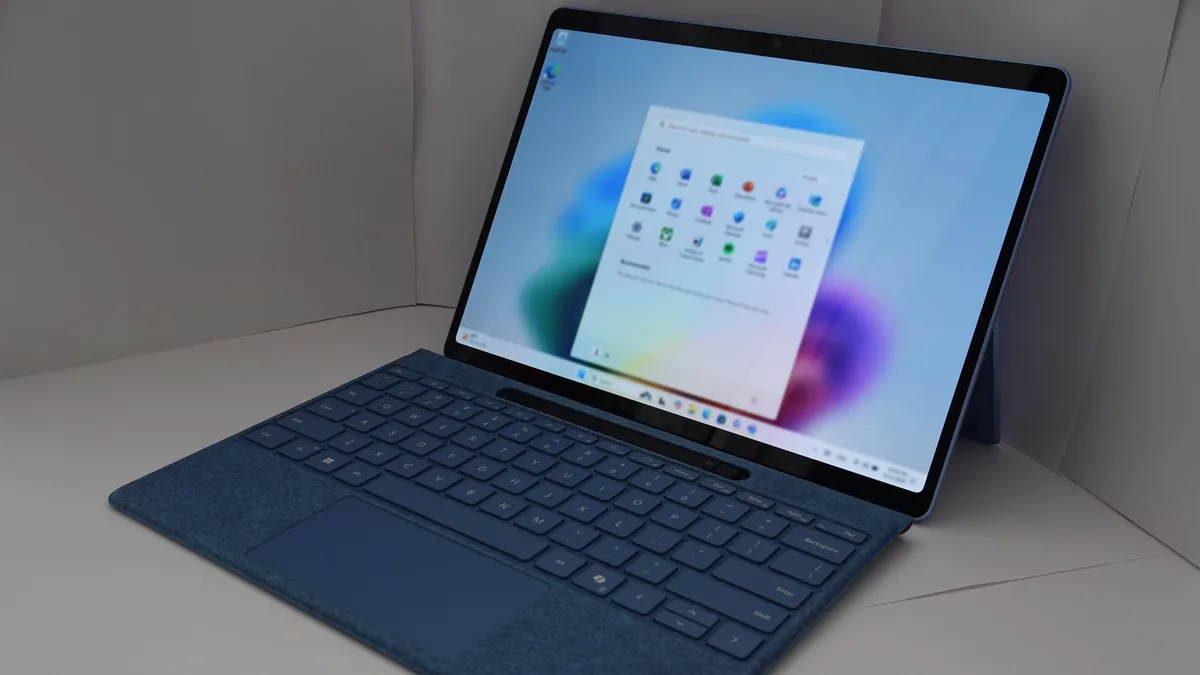
What you’ll need
- A PC running Windows 10 or Windows 11
- An active Xtremes IPTV subscription with your credentials or M3U URL
- A stable internet connection, wired recommended for 4K content
Step-by-step instructions
- 1
Download a compatible IPTV player
Download a supported desktop IPTV player application (such as a VLC-based or dedicated Xtream Codes-compatible player) from its official website.
- 2
Install the application
Run the installer and follow the on-screen prompts to complete setup.
- 3
Add your Xtremes IPTV playlist
Open the player and enter your username, password, and server URL, or load your M3U playlist link directly.
- 4
Start streaming
Once the channel list syncs, browse categories or search to find a channel and begin watching.
Troubleshooting
Windows Defender flags the installer
Only download IPTV player software from the developer's official website, and verify the publisher name before allowing the installer through.
Playback is choppy on a wired connection
Close bandwidth-heavy background apps and check for other devices on the network consuming bandwidth simultaneously.
No audio during playback
Check the player's internal audio output setting matches your system's default playback device.
App won't accept the M3U link
Make sure the link was copied in full, including the protocol prefix, with no line breaks.
Still need help? Check our FAQ page or contact support.