
How to Install IPTV on Firestick
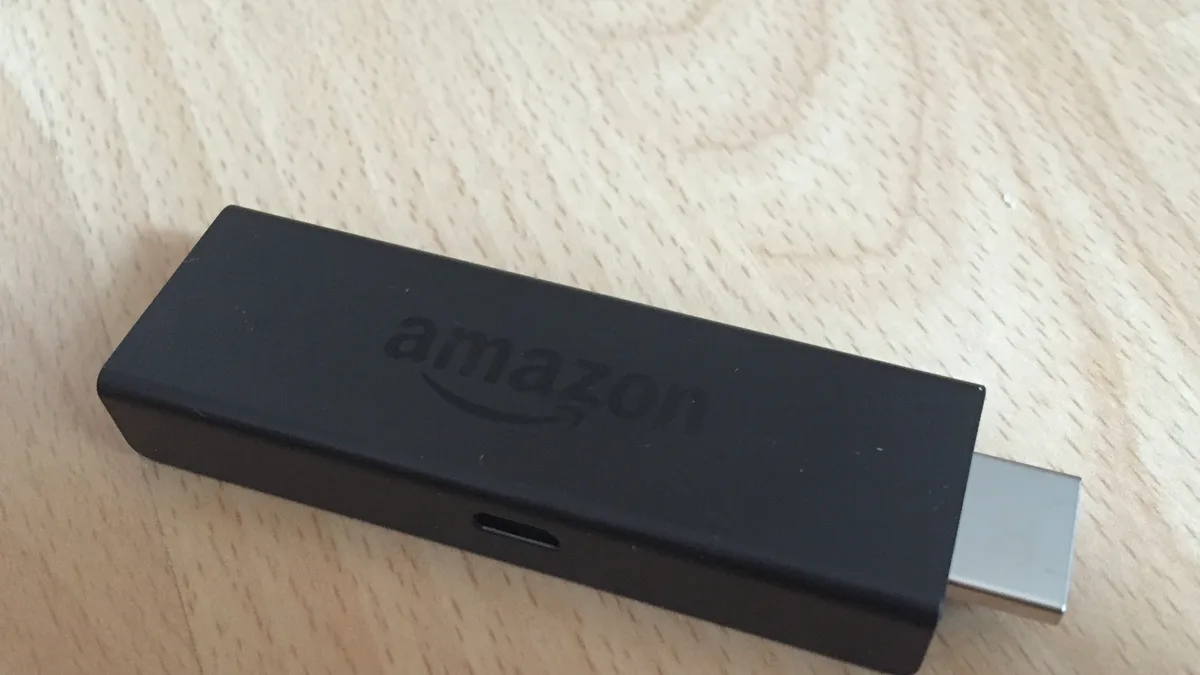
Amazon's Firestick is a favorite for IPTV streaming because it's inexpensive, widely available, and supports sideloaded apps. This article gives a general overview — for the full detailed steps and troubleshooting, see our complete Firestick installation guide.
Why Firestick works well for IPTV
Unlike some smart TV platforms with tightly locked-down app stores, Fire OS allows installing apps from outside the Amazon Appstore when you enable the right setting. That flexibility is what makes third-party IPTV players easy to install.
The general process
At a high level, Firestick setup involves enabling apps from unknown sources, installing the Downloader app, using it to fetch a compatible IPTV player, and then entering your subscription credentials inside that player.
What to have ready
Before you start, make sure you have your Xtremes IPTV login details or M3U link on hand, and confirm your Firestick is connected to a stable internet connection — ideally at least 15 Mbps for HD content.
Common first-time hiccups
The most frequent issues are typos in the server URL and apps that fail to launch after installation, both of which are usually solved by re-checking your credentials or restarting the device. For a full troubleshooting checklist, see the complete Firestick guide.
After you're set up
Once channels are loading, take a moment to mark your favorite channels for quicker access next time, and bookmark our FAQ page in case questions come up later.