
How to Set Up IPTV on Android TV
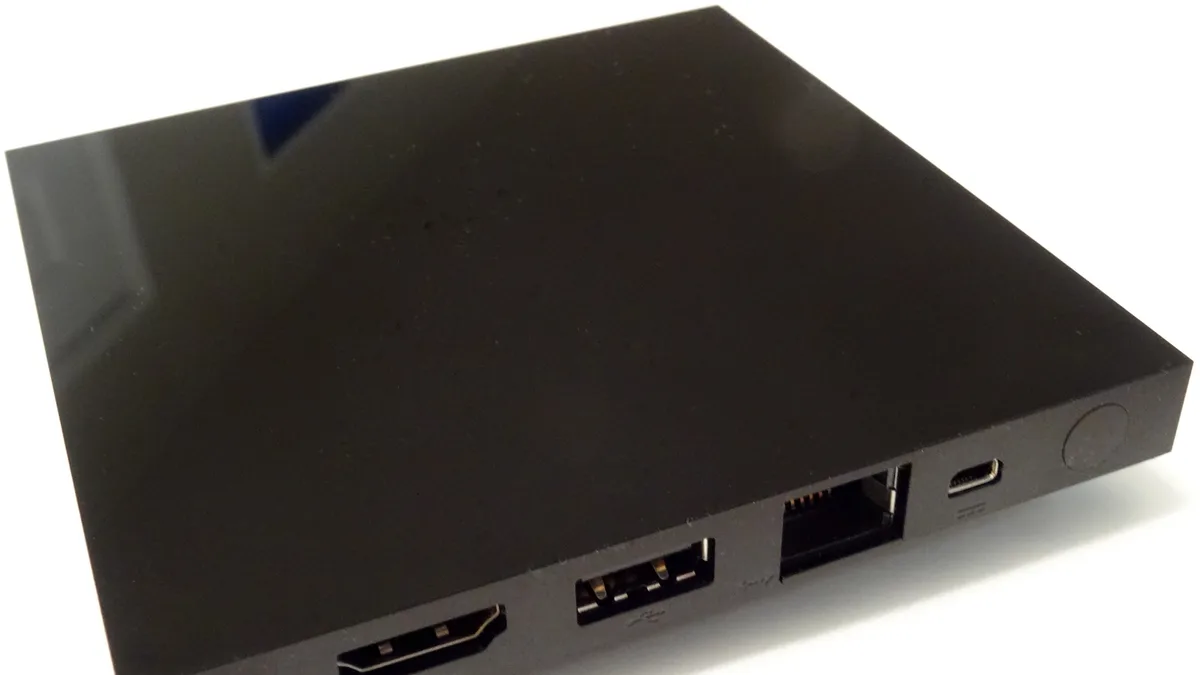
Android TV stands out among streaming platforms because most IPTV player apps are available directly through the Google Play Store — no sideloading required. Here's the general shape of the setup process; our full Android TV installation guide covers every step in detail.
Where Android TV shows up
This setup applies to dedicated Android TV boxes, Chromecast with Google TV, and any smart TV that runs Android TV or Google TV as its operating system.
The core steps
Open the Play Store, search for a supported IPTV player, install it, then add your subscription using your username, password, and server URL — or your M3U link if that's how your account was provisioned.
Letting the channel list sync
After adding your playlist, give the app a moment to download the full channel list and EPG data. This is also when program guide issues most commonly show up — see our guide on fixing EPG problems if the guide doesn't populate.
Organizing your channels
Most Android TV IPTV players let you favorite channels so they surface at the top of the list, which is worth doing once you know which channels you watch most.
Next steps
If you haven't subscribed yet, compare Xtremes IPTV plans first, or check the devices page to confirm Android TV is the right fit for your setup.